10-Step Checklist: From Idea to Deployed App in One Day
A colleague of mine — operations lead at a mid-size company — had been managing purchase approvals through email chains and a spreadsheet for two years. Everyone hated it. She'd requested a proper tool from devs three times. Each request was acknowledged, prioritised "medium," and eventually buried under more urgent projects.
One morning, she opened an AI app builder, typed a few paragraphs describing what she needed, and started iterating. By evening, she had an actual working application — with login, a submission form, a manager approval queue, and email notifications — running on a custom domain. The team switched to it the next day. The spreadsheet is still sitting in a shared drive somewhere, untouched.
She didn't write a single line of code. Didn't configure a database. Didn't set up a server. She described what she wanted, reviewed what the AI generated, asked for changes in plain English, and kept going until it worked.
The day wasn't friction-free — she had to rethink her approval flow twice when the first version turned out to be more complicated than necessary, and the email notifications needed three rounds of refinement. But she shipped a full-stack app her team could use without coding. And that's more than most software projects accomplish in their first month.
This article walks through the process she wished she'd followed from the start — from idea to live app with backend. Ten steps, sequenced to prevent the mistakes that waste the most time, and written for people who know exactly what functional apps they need built, but have never used an AI app builder before.
Build a Working App in One Day
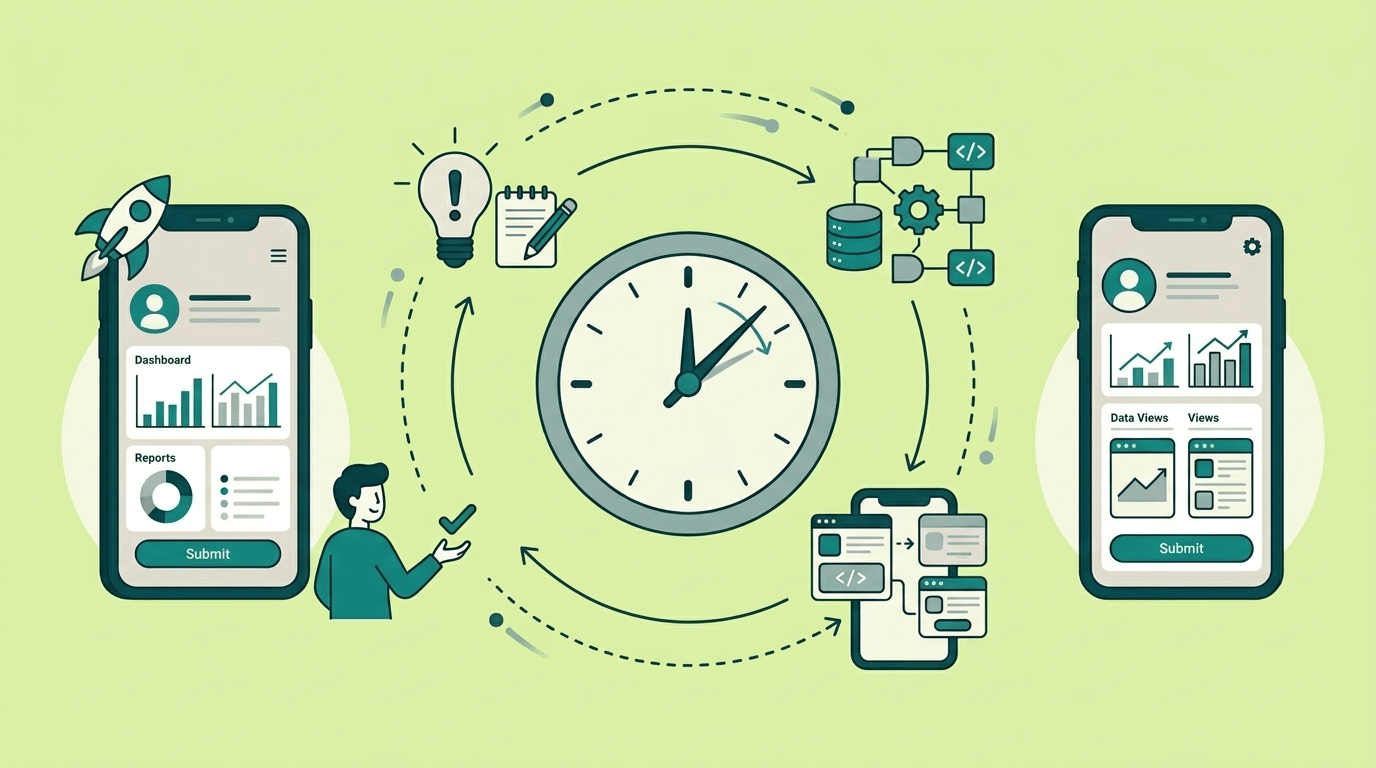
Let's set expectations. A one-day build isn't a finished product. The concept of going from idea to app in seconds won't give you a working mobile app. It's a focused, functional slice: one main user journey, a clean interface, real authentication, and enough behind the scenes that people can actually use it. Think "version 0.1 that works" rather than "version 1.0 that impresses."
That said, "works" has to mean production-ready, fully functional tools. Users should be able to sign up, log in, complete the core task, and see their result. The app should live on a proper domain with HTTPS. And you should know when something goes wrong, rather than finding out from a frustrated colleague.
The reason most one-day builds stall or fail isn't that building takes too long. It's that people spend half the day on decisions that should have been made in the first hour — changing their mind about what to build, redesigning the UI before the workflow is right, or discovering at 4 PM that their idea is actually three apps stitched together.
This checklist front-loads those decisions so you can spend most of your time on the part that matters: describing your app to AI and shaping it into something good.
1. Clarify Your App Idea Before Building
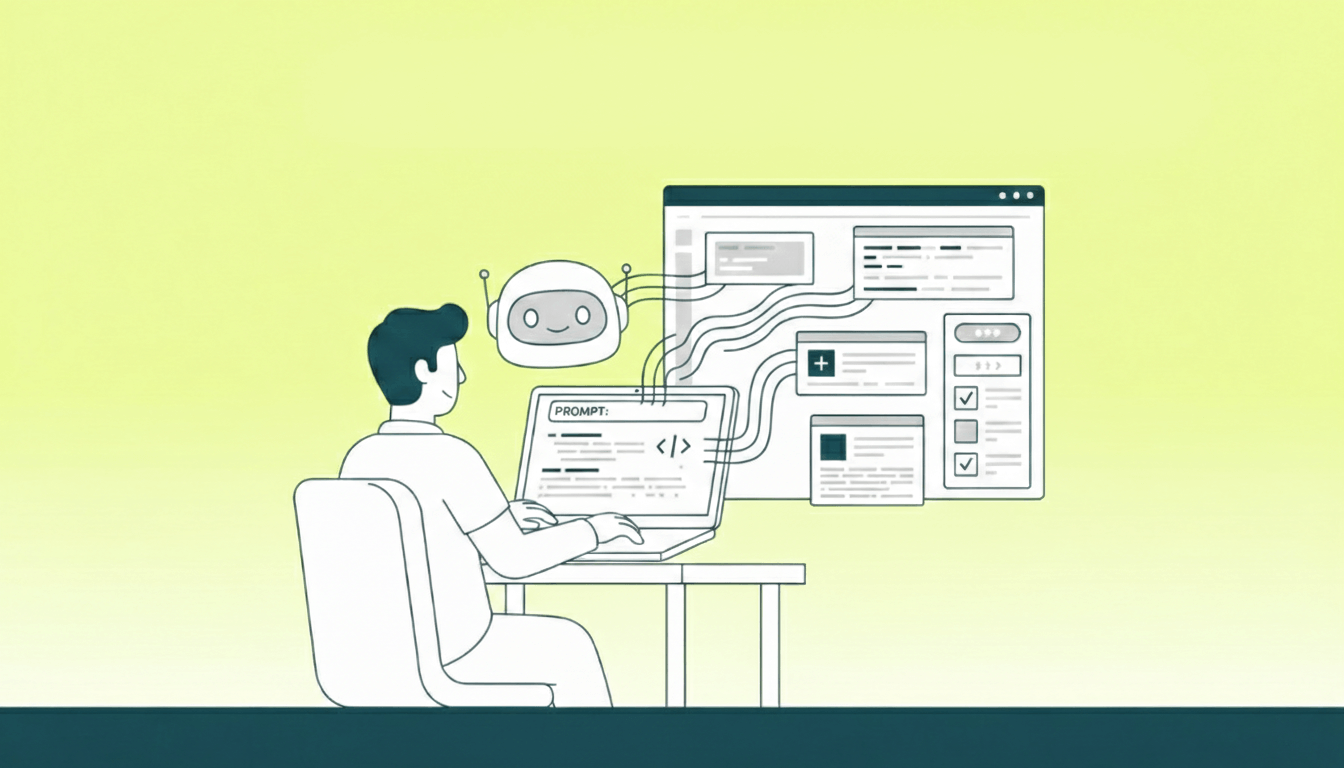
The temptation is to jump straight into a no-code AI builder and start bringing a ton of ideas to life. Resist it. The fifteen minutes you spend thinking clearly now will save you hours of going in circles later.
Write one sentence: "For [who], this app helps them [do what], so they can [get what result]."
Real examples:
- "For hiring managers, this app collects candidate feedback from interview panellists and summarises it for a final decision."
- "For freelance designers, this app generates invoices from project details and tracks which clients have paid."
- "For property managers, this app lets tenants report maintenance issues with photos and routes them to the right contractor."
That one sentence becomes the anchor for every decision you make today. When you're tempted to add a settings page, a dashboard with charts, or an admin panel — ask yourself whether it serves that sentence. If not, it goes on the "not today" list.
And you should literally write that list. A quick Must / Should / Could / Won't sort (sometimes called MoSCoW) is the fastest way to make your scope decisions visible and intentional. The "Won't" column is the most valuable part — it's your protection against the scope creep that sinks one-day builds.
Use AI to stress-test your idea before building anything. Open ChatGPT, Claude, or whatever AI assistant you prefer and try this:
I want to build a web app. Here's my idea:

"""[your paragraph]"""

Before I build anything, help me think this through:
1. Sharpen this into one clear sentence (who, what, why)
2. What's the single most important user journey? Walk me through
   it step by step.
3. Name 4-5 things that sound important but I should NOT build
   on day one.
4. What's the simplest possible version that would still be useful?
The AI won't know your business as well as you do, but it's remarkably good at spotting where your idea is actually two or three different ideas mashed together. That's the thing to catch now, not after you've generated half an app.
2. Create a Mini Spec With AI
You don't need a formal product requirements document. You need a single page that describes what "done" looks like — specific enough that you could hand it to someone and they'd know what to build without asking you questions.
Four things belong on this page:
A user story. "As a hiring manager, I want to collect structured interview feedback from my team, so I can make a final decision without chasing people over Slack." One story. If you're writing more than one, your scope is too broad for a day.
What "working" looks like. These are your acceptance criteria — the concrete behaviours you'll check before calling it done. "When a panellist submits feedback, it appears in the manager's dashboard with a timestamp" is specific. "The app should handle feedback well" is not. Write 5-8 of these, and include at least two failure scenarios ("When someone tries to submit without filling in required fields, they see a clear error message").
What you're not building today. Write it out. "No analytics dashboard. No PDF export. No integration with our ATS. No mobile app." This list is your lifeline when you're deep in a build and think "oh, I should just add one more thing."
Something you can verify tonight. Not "monthly active users" — something you can check before you close your laptop. "A new user can sign up, submit feedback on a candidate, and the manager can see it — all within three minutes."
Here's a prompt to build this spec collaboratively with AI:
I'm building a web app in one day using an AI app builder.
Here's my idea and the main user journey:

"""[paste your one-sentence description and the journey from Step 1]"""

Help me write a one-page spec. Include these exact sections:
- User story (As a / I want / So that)
- Acceptance criteria (5-8 bullets, specific and testable —
  include 2 scenarios where something goes wrong)
- Non-goals (at least 4 things we're NOT building today)
- Success metric (something I can manually verify tonight)
- Data: what are the 2-3 main types of information this
  app stores, and how do they relate to each other?
Copy the result into a doc. Read through it. Does it match what you actually want? Edit it until it does. This spec is going to be the thing you paste into your AI app builder in Step 5, so it's worth getting right.
3. Plan Screens for Web and Mobile
Before you generate anything, sketch the journey. Not in a design tool — on paper, in a notes app, or even in a chat with AI. The goal is to know which screens exist, what each one does, and how users move between them.
For a purchase approval app, the flow might look like this:
Login → Dashboard (list of my requests + their status) → New Request form (item, amount, reason, urgency) → Confirmation screen → Manager gets notified → Manager's Approval Queue → Approve/Reject with comment → Employee sees updated status
That's eight screens. For a one-day build, you want fewer than ten. If your flow has fifteen steps, you're building too much.
Why bother before opening a builder? Because AI generates much better results when you describe a flow than when you describe a feature list. "Build me an approval app" produces something generic. "Build me an app where employees submit purchase requests that go to their manager's queue for approval" produces something you can actually use.
Ask AI to help you think through the flow:
Here's the spec for my app:

"""[paste your spec from Step 2]"""

Map out the user flow as a numbered list of screens. For each screen,
tell me:
- What the user sees
- What actions they can take
- Where each action leads
- What happens when something goes wrong (empty list, invalid input,
  no permission)

Keep it under 10 screens. Flag anything that seems too complex
for a one-day build.
If the AI flags something as too complex, listen. Cut it. You can add it on day two.
4. Design Your App’s Look and Feel
AI app builders don't just generate functionality — they generate interfaces. And the visual direction you provide makes a dramatic difference in what comes out. Skipping this step means getting a generic-looking app. Spending ten minutes on it means getting something that actually feels like yours.
You don't need a brand guide. You need to answer three questions:
What's the mood? Professional and trustworthy? Friendly and casual? Minimal and calm? Think about who's going to use this. An internal operations tool should feel different from a client-facing portal.
What apps do you like the look of? Reference points are powerful. "Clean and spacious like Notion" or "structured and data-focused like Linear" or "warm and friendly like Mailchimp" gives an AI builder far more to work with than "make it look nice."
Any specific preferences? If you have brand colours, mention them. If you hate bright orange, say so. If you want a sidebar navigation instead of a top bar, include that. Small details in your description lead to big differences in output.
Here's an example of what that looks like as a prompt snippet you'll use in the next step:
VISUAL DIRECTION:
- Professional but approachable — this is an internal tool used daily,
  not a marketing site
- Clean layout with plenty of white space, card-based design
- Colour scheme: navy blue primary, white backgrounds, subtle grey
  accents. Green for "approved", red for "rejected"
- Navigation: left sidebar with icons for main sections
- Mobile-responsive — people will use this on their phones
- Reference: the overall feel of Notion's interface — minimal,
  organised, not cluttered
Ten minutes of thought here replaces multiple rounds of "actually, can you change the whole colour scheme?" later.
5. Describe Your App to the AI App Builder
Now you open the tool.
AI app builders — Chattee, Lovable, Bolt.new, and others — turn natural language descriptions into working applications. They generate the interface, the database, the logic, the authentication, everything. No code required. But the quality of what they produce depends entirely on the quality of what you put in.
Resist the urge to type a wish. "Build me a project management tool" produces something bloated and generic — a dozen features you didn't ask for, a confusing interface, and none of the specific workflow that makes your app useful.
Instead, paste in the work you've already done. Your spec from Step 2, your user flow from Step 3, your visual direction from Step 4. Structure it clearly:
Build a web application for internal purchase request approvals.

WHO IT'S FOR:
Employees at a 50-person company who need to request purchases,
and managers who approve or reject those requests.

USER STORY:
As an employee, I want to submit purchase requests and track their
status, so I don't have to chase my manager over email.

THE FLOW:
1. Employee logs in and sees their dashboard with past requests
2. Employee clicks "New Request" and fills in: item name, amount,
   reason, urgency level
3. Request goes to their manager's approval queue
4. Manager sees pending requests, can approve or reject with
   a comment
5. Employee gets notified and sees updated status
6. Admin can view all requests across the company

RULES:
- Managers only see requests from their direct reports
- Employees can only see their own requests
- Admins can see everything but can't approve/reject
- Requests over $5,000 require a second approval

VISUAL DIRECTION:
[paste from Step 4]

NOT IN THIS VERSION:
- No budget tracking or reporting
- No integration with accounting software
- No file attachments on requests
- No mobile native app (responsive web is fine)
That structure — who, story, flow, rules, visual direction, exclusions — gives the AI everything it needs without ambiguity. Platforms like Chattee, Lovable, and Bolt.new all work better with structured input like this — they're designed around the iterative loop of describe, review, refine.
After the first generation, don't start over. Look at what was built. Open it. Click through the screens. Compare it to your flow from Step 3. Then give specific feedback:
The request form looks good, but it's missing the urgency
level field. Add a dropdown with options: Low, Medium, High, Urgent.

Also, the manager's approval queue shows all requests — it should
only show requests from their direct reports. And add a comment
field to the approve/reject action.
Specific beats vague. "Make it better" gets you nowhere. "The status badges should be colour-coded: yellow for pending, green for approved, red for rejected" gets you exactly what you want.
6. Set Up Backend and User Roles
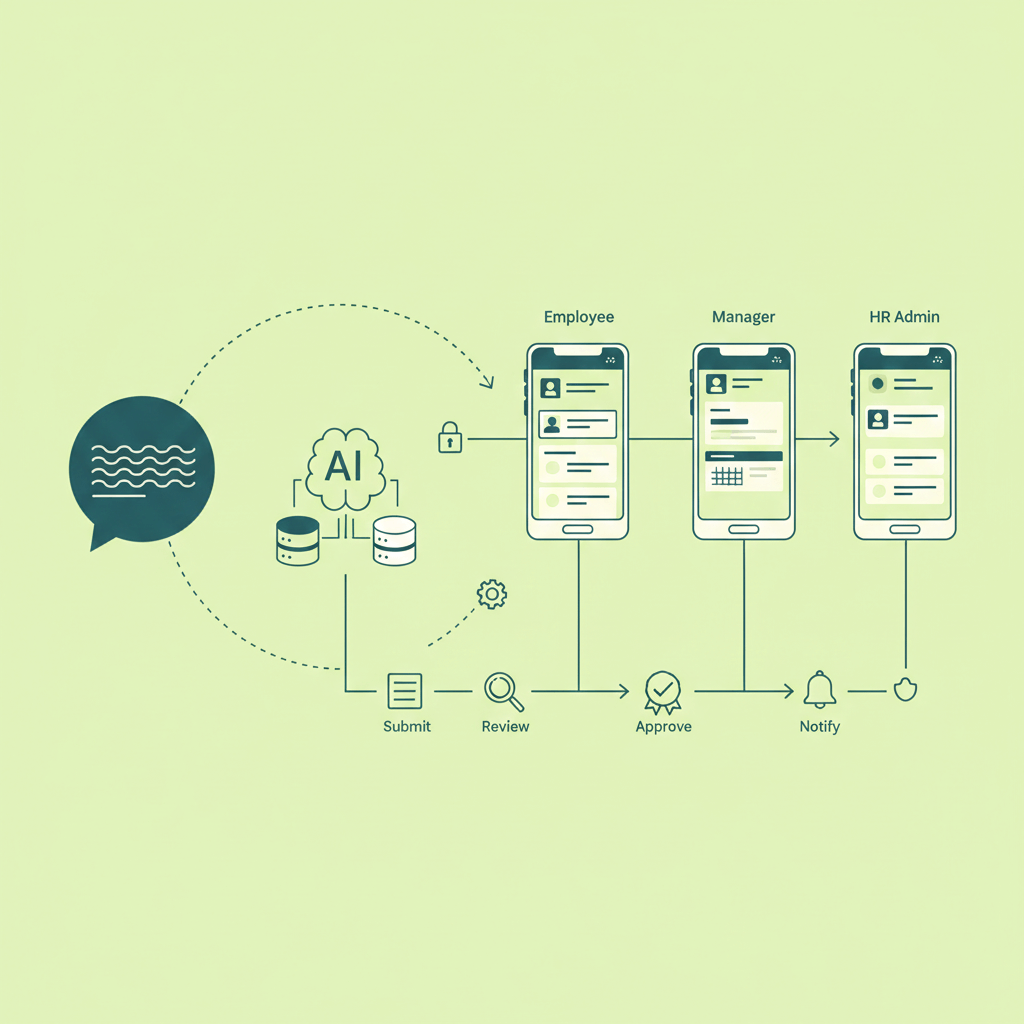
Most AI app builders include authentication out of the box — Chattee, Lovable, and Bolt.new all handle user signup and login automatically when you describe an app that needs it. But getting roles and permissions right is on you, and skipping this step creates problems that are painful to fix later.
The reason to nail this early: everything else depends on it. Which data a user sees, which actions they can take, which screens they can access — all of that flows from "who is this person and what are they allowed to do?"
When you described your app in Step 5, you probably already mentioned roles ("employee," "manager," "admin"). Now make them explicit. Tell the builder exactly what each role can and can't do:
This app has three user roles:

EMPLOYEE:
- Can create new purchase requests
- Can view and edit their own requests (only while status is "draft")
- Can see the status of their submitted requests
- Cannot see other employees' requests
- Cannot approve or reject anything

MANAGER:
- Has all employee abilities for their own requests
- Can view the approval queue (only requests from their direct reports)
- Can approve or reject requests with a required comment
- Cannot see requests from people outside their team

ADMIN:
- Can view all requests across the company (read-only)
- Can view summary statistics
- Cannot approve or reject requests
- Can manage user accounts and role assignments
The "cannot" statements are just as important as the "can" statements. Without them, AI tends to be generous with access — giving admins approval powers, letting managers see all requests, or letting employees edit submitted requests. Stating what each role shouldn't do prevents these quiet permission bugs from sneaking into production.
After the builder generates this, verify it yourself. Log in as each role. Try to access something you shouldn't be able to. This five-minute check prevents the kind of permission mistake that would be embarrassing (or worse) with real users.
7. Perfect the Core App Workflow
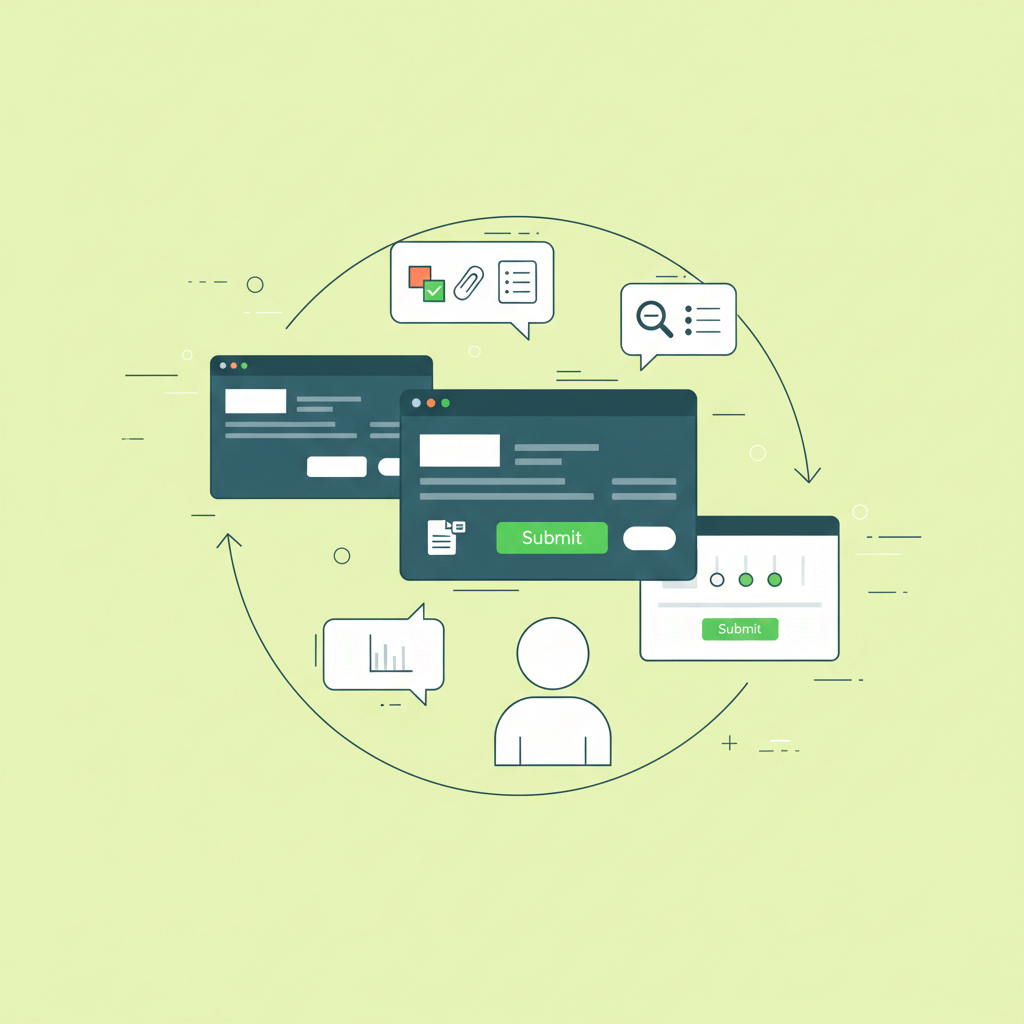
Your app exists now — at least a first version of it. The screens are there, the database is storing data, login works. But odds are the flow isn't quite right yet. Maybe the form has too many fields. Maybe the confirmation step is confusing. Maybe the manager's queue doesn't sort properly.
This is where the iterative power of AI app builders really shows. You're not rewriting code — you're having a conversation. And the specificity of your feedback directly determines the quality of the result.
Work through your flow from Step 3, screen by screen. Try it as each user role. And whenever something feels off, describe what's wrong and what you want instead:
The "New Request" form has too many fields showing at once — it
feels overwhelming. Break it into two steps:
Step 1: Item name, estimated amount, and urgency (with a "Next" button)
Step 2: Detailed reason/justification and any notes (with "Submit")

Add a progress indicator so the user knows they're on step 1 of 2.
Or for the manager's experience:
The approval queue sorts requests by date, but managers told me they
want to see urgent requests first. Change the default sort to:
urgency (Urgent first), then date (oldest first within each urgency).

Also, add a small badge on each request card showing how many days
it's been waiting. Anything over 3 days should show in red.
A few rounds of this and your app starts to feel like something designed by someone who understands the problem — because it was. You're the designer. The AI is the builder. That division of labour is exactly what makes this process work.
One thing to watch for: don't over-polish individual screens before the full flow works. Get the happy path (the normal, expected sequence) working end-to-end first. Then go back and improve each screen. Polishing a form that might get redesigned when you test the full journey is wasted effort.
8. Add AI Features and Integrations
With the core workflow solid, you can layer on the features that make the app feel complete. Notifications, external services, AI-powered functionality — these are the things that turn a basic tool into something people actually enjoy using.
For a no-code build, the key is knowing what to ask for. You don't need to know how email APIs work; you just need to describe what should happen and when.
Notifications are usually the highest-impact addition:
Add email notifications for these events:
- When an employee submits a request, their manager gets an email
  with the request details and a link to the approval queue
- When a manager approves or rejects a request, the employee gets
  an email with the decision and the manager's comment
- Keep emails simple and professional. Include the app's name in
  the subject line.
AI-powered features can be surprisingly easy to add through an app builder. If your app could benefit from summarisation, classification, or content generation, describe it in terms of what it should do:
When a manager views more than 5 pending requests, show a "Quick
Summary" button at the top of the queue. When clicked, it should
generate a brief overview: total amount across all pending requests,
how many are urgent, and any patterns (e.g., "3 requests are for
software licenses").
External integrations — Slack notifications, calendar events, payment processing — depend on what your AI app builder supports. Chattee handles backend integrations as part of the generation process, so you can describe what you need and it generates the connection. Other builders may need you to use third-party tools like Zapier or Make to connect services.
Describe what should happen and where it should go:
When a purchase request is approved, send a notification to the
#approvals channel in Slack with: the item name, amount, who
requested it, and who approved it.
Don't try to add five integrations in one day. Pick the one or two that make the biggest difference to your users and save the rest for later.
9. Test it like a real user (not like the person who built it)
You've been staring at this app for hours. You know exactly how it works, what each button does, where each screen leads. That familiarity is your blind spot. The things that are obvious to you will confuse everyone else.
Testing a one-day build doesn't mean writing automated test suites. It means using the app the way your actual users will — and catching the problems before they do.
Walk through the complete journey fresh. Open the app in a new browser where you're not logged in. Sign up as a brand new user. Complete the core flow from beginning to end. Notice where you hesitate, where the next step isn't obvious, where the feedback after an action is unclear or missing.
Test on your phone. Pull up the app on mobile. Can you complete the main flow? Are buttons big enough to tap? Does the layout make sense on a smaller screen? If your users will access this during their workday — standing in a warehouse, sitting in a meeting, riding the bus — mobile matters.
Try to break it. Submit a form with empty fields. Enter a ridiculously long name. Hit the back button in the middle of a flow. Try to access a page you shouldn't have permission to see. These aren't edge cases — they're things that will happen on day one.
When you find problems, describe them to the builder:
When I submit the request form with the amount field empty,
nothing happens — no error message, the form just sits there.
Add validation: amount is required, must be a positive number,
and show a clear error message below the field if it's missing
or invalid.

Also, when I hit the browser back button after submitting a request,
it shows the filled-in form again and I can accidentally submit
a duplicate. After a successful submission, redirect to the
dashboard and clear the form state.
Have someone else try it. Ideally, someone who matches your target user. Hand them your phone, tell them "you need to submit a purchase request," and watch. Don't explain the interface. Don't point at buttons. Just observe. Where they get stuck is where your app needs work.
10. Deploy Your App to Production
No-code AI app builders handle most of the deployment complexity for you. With Bolt.new, you deploy to their hosting. With Lovable, it's a similar story. Chattee includes hosting with custom domains and SSL as part of the platform, plus you can export the full source code if you ever want to host it yourself.
What you still need to handle: making the app available at a professional URL and knowing when something goes wrong.
Getting a custom domain working is straightforward but has a timing quirk that catches people. When you add a domain in your no-code app builder or hosting provider, they'll tell you to add DNS records at your domain registrar (wherever you bought the domain — GoDaddy, Namecheap, Cloudflare, etc.). This usually means adding an A record or CNAME record. Do it, then wait. DNS changes propagate across the internet gradually — anywhere from a few minutes to a few hours. Don't panic if the domain doesn't work immediately.
SSL (the padlock icon, the "https://") is almost always automatic. The platform provisions a certificate once DNS validates. If it's been more than thirty minutes and you still see a security warning, double-check that your DNS records match exactly what the platform specified.
Monitoring matters, even for a simple app. You don't want to learn your app is down from an annoyed user. Most app builders include basic monitoring, but if yours doesn't, sign up for a free uptime monitor (UptimeRobot or similar) and point it at your app's URL. Set it to alert you by email or Slack. That's the bare minimum.
Beyond uptime, you want to know if people are actually using the app. Can you see how many users signed up today? Whether anyone completed the core flow? Most AI app builders show basic analytics in their dashboard. If not, ask the builder to add simple tracking:
Add a simple activity log that records:
- When a new user signs up
- When a purchase request is submitted
- When a request is approved or rejected
- When an error occurs

Show this log in the admin dashboard as a chronological list
with timestamps.
Write down three things before you close your laptop:
- How to check if the app is working (the URL to visit, what to look for)
- How to revert if something breaks (usually: redeploy the previous version through the platform dashboard)
- Where to find the activity log or error messages
This takes five minutes. The first time something goes sideways — and it will, eventually — you'll be glad you wrote it down.
Launch and Monitor Your App
If you followed these steps, you have a real application on a real domain that real people can use. Login works. The core workflow works. It looks professional. You know when it's down.
That's more than many software projects deliver in their first MVPs, and you did it without writing code, without waiting for engineering, without a development budget.
Day two is not about adding features. Day two is about watching. Who signed up? Did they finish the core flow? Where did they get stuck? What's the first piece of feedback? The answers to those questions should drive everything you do next. Fix what's confusing. Improve the error messages. Make the mobile experience smoother. Resist the temptation to add new features until you understand how people actually use what you've already built.
Non-technical users can ship a working app in a single day in 2026 because AI has compressed the building step nearly to zero.
What it hasn't compressed is the thinking step. Knowing who you're building for, what problem you're solving, what the flow should feel like, and when to say "that's enough for today" —— that's still on you. And it's still the hard part.
These ten steps of app development are structured to make you do that thinking first, because a clear, focused description fed into any decent AI app builder produces dramatically better results to actually turn ideas into apps in minutes if you want.
Pick something real. The workflow your team has been complaining about. The client tool that keeps getting postponed. The process everyone knows is broken but nobody has the bandwidth to fix. Something small, without complex logic, enough to ship in a day, important enough that people will actually use it.
Then describe what you want, shape it, and ship it.
Chattee generates full-stack web apps — database, auth, backend, frontend — from a conversation. Describe what you need, iterate on the result, deploy to a custom domain, and export the complete source code whenever you want. It's free to start — no credit card required.
*Want to understand how AI turns a description into working code? Read How Prompt-to-App Works. Evaluating whether to build custom software or buy off the shelf? See Build vs. Buy in the Age of AI. Curious how AI builders compare to traditional no-code and low-code platforms? Check out No-Code vs. Low-Code vs. AI App Builders.